%20--%3e%3csvg%20width='1105.4181mm'%20height='776.11688mm'%20viewBox='0%200%201105.4181%20776.11688'%20version='1.1'%20id='svg1'%20inkscape:version='1.4%20(e7c3feb1,%202024-10-09)'%20sodipodi:docname='logo-full-bright.svg'%20xmlns:inkscape='http://www.inkscape.org/namespaces/inkscape'%20xmlns:sodipodi='http://sodipodi.sourceforge.net/DTD/sodipodi-0.dtd'%20xmlns='http://www.w3.org/2000/svg'%20xmlns:svg='http://www.w3.org/2000/svg'%3e%3csodipodi:namedview%20id='namedview1'%20pagecolor='%23ffffff'%20bordercolor='%23000000'%20borderopacity='0.25'%20inkscape:showpageshadow='2'%20inkscape:pageopacity='0.0'%20inkscape:pagecheckerboard='0'%20inkscape:deskcolor='%23d1d1d1'%20inkscape:document-units='mm'%20inkscape:zoom='0.077664513'%20inkscape:cx='2652.4341'%20inkscape:cy='-173.82456'%20inkscape:window-width='1512'%20inkscape:window-height='852'%20inkscape:window-x='0'%20inkscape:window-y='38'%20inkscape:window-maximized='0'%20inkscape:current-layer='layer1'%20/%3e%3cdefs%20id='defs1'%20/%3e%3cg%20inkscape:label='Layer%201'%20inkscape:groupmode='layer'%20id='layer1'%20transform='translate(-9.0982812,-182.34047)'%3e%3cpath%20fill='%23fbfbfb'%20d='m%20608.43028,182.95351%20318.67903,0.18711%20c%2059.06525,0.011%20128.52399,-1.84931%20186.95209,0.0661%200.034,72.6293%200.9466,146.98771%200.088,219.46224%20l%20-304.17231,0.19262%20c%2085.14808,185.6286%20178.19627,369.85742%20264.12781,554.87073%20l%20-243.30522,0.009%20-141.3743,-290.81197%20c%20-22.77058,-46.9591%20-82.50027,-159.69523%20-81.25041,-158.85879%200.18271,0.79361%20-0.0221,-95.29455%200.022,-115.29112%20z%20m%20430.76952,132.90505'%20id='path5'%20sodipodi:nodetypes='ccccccccccc'%20style='display:block;fill:%23000000;fill-opacity:1;stroke-width:1.82019'%20/%3e%3cpath%20fill='%23fbfbfb'%20d='m%20515.18406,182.95636%20-318.67918,0.18713%20c%20-59.0652,0.011%20-128.52369,-1.84931%20-186.9518051,0.0661%20-0.032992,72.62929%20-0.9466133,146.9877%20-0.088043,219.46224%20L%20313.63715,402.86444%20C%20228.48865,588.493%20135.44045,772.72183%2049.509221,957.73513%20l%20243.304949,0.009%20141.37428,-290.81195%20c%2022.77058,-46.95911%2082.50039,-159.69524%2081.25043,-158.85891%20-0.18273,0.79361%200.022,-95.29443%20-0.0221,-115.29111%20z%20M%2084.414622,315.86143'%20id='path5-1'%20sodipodi:nodetypes='ccccccccccc'%20style='display:block;fill:%23000000;fill-opacity:1;stroke-width:1.82019'%20/%3e%3cpath%20fill='rgb(251,251,251)'%20d='m%20543.36388,732.32716%20c%2061.77186,-9.74528%20119.83595,32.21383%20129.97441,93.93285%2010.13846,61.71902%20-31.47118,120.03981%20-93.12097,130.55867%20-62.20145,10.61165%20-121.15559,-31.43474%20-131.37781,-93.70346%20-10.22399,-62.26695%2032.19379,-120.95714%2094.52437,-130.78806%20z'%20id='path6'%20style='display:block;fill:%23000000;stroke-width:1.82019'%20/%3e%3c/g%3e%3c/svg%3e)
%20--%3e%3csvg%20width='1105.4181mm'%20height='776.11688mm'%20viewBox='0%200%201105.4181%20776.11688'%20version='1.1'%20id='svg1'%20inkscape:version='1.4%20(e7c3feb1,%202024-10-09)'%20sodipodi:docname='logo-algo-trade-w.svg'%20xmlns:inkscape='http://www.inkscape.org/namespaces/inkscape'%20xmlns:sodipodi='http://sodipodi.sourceforge.net/DTD/sodipodi-0.dtd'%20xmlns='http://www.w3.org/2000/svg'%20xmlns:svg='http://www.w3.org/2000/svg'%3e%3csodipodi:namedview%20id='namedview1'%20pagecolor='%23ffffff'%20bordercolor='%23000000'%20borderopacity='0.25'%20inkscape:showpageshadow='2'%20inkscape:pageopacity='0.0'%20inkscape:pagecheckerboard='0'%20inkscape:deskcolor='%23d1d1d1'%20inkscape:document-units='mm'%20inkscape:zoom='0.077664513'%20inkscape:cx='2652.4341'%20inkscape:cy='-173.82456'%20inkscape:window-width='1512'%20inkscape:window-height='852'%20inkscape:window-x='0'%20inkscape:window-y='38'%20inkscape:window-maximized='0'%20inkscape:current-layer='layer1'%20/%3e%3cdefs%20id='defs1'%20/%3e%3cg%20inkscape:label='Layer%201'%20inkscape:groupmode='layer'%20id='layer1'%20transform='translate(-9.0982812,-182.34047)'%3e%3cpath%20fill='%23fbfbfb'%20d='m%20608.43028,182.95351%20318.67903,0.18711%20c%2059.06525,0.011%20128.52399,-1.84931%20186.95209,0.0661%200.034,72.6293%200.9466,146.98771%200.088,219.46224%20l%20-304.17231,0.19262%20c%2085.14808,185.6286%20178.19627,369.85742%20264.12781,554.87073%20l%20-243.30522,0.009%20-141.3743,-290.81197%20c%20-22.77058,-46.9591%20-82.50027,-159.69523%20-81.25041,-158.85879%200.18271,0.79361%20-0.0221,-95.29455%200.022,-115.29112%20z%20m%20430.76952,132.90505'%20id='path5'%20sodipodi:nodetypes='ccccccccccc'%20style='display:block;fill:%23ffffff;fill-opacity:1;stroke-width:1.82019'%20/%3e%3cpath%20fill='%23fbfbfb'%20d='m%20515.18406,182.95636%20-318.67918,0.18713%20c%20-59.0652,0.011%20-128.52369,-1.84931%20-186.9518051,0.0661%20-0.032992,72.62929%20-0.9466133,146.9877%20-0.088043,219.46224%20L%20313.63715,402.86444%20C%20228.48865,588.493%20135.44045,772.72183%2049.509221,957.73513%20l%20243.304949,0.009%20141.37428,-290.81195%20c%2022.77058,-46.95911%2082.50039,-159.69524%2081.25043,-158.85891%20-0.18273,0.79361%200.022,-95.29443%20-0.0221,-115.29111%20z%20M%2084.414622,315.86143'%20id='path5-1'%20sodipodi:nodetypes='ccccccccccc'%20style='display:block;fill:%23ffffff;fill-opacity:1;stroke-width:1.82019'%20/%3e%3cpath%20fill='rgb(251,251,251)'%20d='m%20543.36388,732.32716%20c%2061.77186,-9.74528%20119.83595,32.21383%20129.97441,93.93285%2010.13846,61.71902%20-31.47118,120.03981%20-93.12097,130.55867%20-62.20145,10.61165%20-121.15559,-31.43474%20-131.37781,-93.70346%20-10.22399,-62.26695%2032.19379,-120.95714%2094.52437,-130.78806%20z'%20id='path6'%20style='display:block;fill:%23ffffff;stroke-width:1.82019'%20/%3e%3c/g%3e%3c/svg%3e)
5 min read
Introducing Scanner: From a Market Question to a Research Shortlist
Scan a defined symbol universe with visual filters or custom Python, inspect why each result matched, and carry a clear question into strategy research.
A research run starts with a choice: which symbols deserve a closer look? When that choice lives only in a conversation, it is difficult to explain, repeat, or compare with the next attempt.
Scanner brings that first step into Algo Trade Analytics. Define a universe, describe the conditions you want to investigate, and inspect the results alongside their data coverage. You can build a screen with visual filters or write a custom Python screen when the question needs more flexibility.
Availability: Scanner and custom Python are available in environments where those capabilities are enabled. Scheduled monitoring has its own availability setting. If Scanner is unavailable in your workspace, contact support before following the walkthrough.
The current integrated Scanner uses historical US equity bars, including supported ETFs, from your linked Alpaca account. Connect a working Alpaca account with access to the required history before calibrating or running a screen.
Start with a question and an explicit universe
A useful screen begins with a question such as, “Which symbols in my list are above a moving average and have stronger recent volume?”
Choose an explicit symbol list or use the symbols from your Case Studies. Set the historical lookback and the completed session you want to inspect. The current integrated Scanner works with daily bars; it is not a live intraday alert feed.
This makes the selection process inspectable. You can see which universe was considered, which rule was used, and where data was missing. A match is a reason to investigate a symbol, not proof that a trading strategy will make money.
Two ways to express the same research question
The visual builder lets you choose fields, edit filter chips, and combine conditions in ALL and ANY groups. Start from a template or build your own screen, then save it for another run. The Python button reveals a read-only declaration of the visual rule, so you can inspect what the controls represent.
Custom Python is a separate screen type. It has an editable source file and parameters, with an evaluate(ctx) function for each symbol and an optional rank(universe) function for comparisons across the supplied universe. NumPy and pandas are supported in the custom runtime.
The distinction is deliberate: visual controls own the generated declaration; an editable Python screen owns its code. Selecting New Python screen starts an independent program. The product does not promise to translate arbitrary Python back into filter chips.
Inspect a result before acting on it
The results grid separates matches, nonmatches, unavailable data, and execution errors. Open a symbol to inspect its retained chart, computed values, and explanation. A missing-data row should not be mistaken for a symbol that failed your rule.
Saved runs retain their definition and scope. Editing today's screen does not rewrite yesterday's result. History and CSV or JSON downloads help you compare what was actually run, while the result drawer keeps the detail close to the shortlist.
When runs have a compatible definition, the comparison can show which symbols entered or exited the matched set. Symbols without conclusive coverage on both sides are excluded from those changes. That prevents a data outage from looking like a market event.
Check Python, then try a small sample
Custom Python has two different checks:
- Check examines the source and parameters against the supported policy. It does not execute the program.
- Save & calibrate executes a sample of up to ten symbols, reports runtime errors and resource use, and estimates the credit cost of a full run.
The sample helps you catch a broken calculation or an expensive ranking step before scanning the full universe. It is not a test of predictive value. In the app, calibration uses the latest completed session; an MCP client can explicitly request a historical calibration date inside its research scope.
Custom code receives the supplied bars and parameters inside a bounded runtime. It cannot fetch arbitrary external data, install packages, or use the filesystem as an unrestricted research environment. Full Python runs use credits; review the displayed quote before running. Visual-rule runs do not use Python execution credits.
Use the same saved screens with an MCP agent
An MCP client can inspect the available fields, create a screen, queue a run, and retrieve the saved results. You can review those same records in the Scanner page instead of relying only on an agent's summary.
Research access keeps its data boundaries. The agent must have an active research run, and the full scanner lookback must fit its authorized development window. Previously saved results and the baseline behind a comparison are checked too. Scanning another symbol does not make reserved research dates available.
For recurring monitoring, use the Scanner page's daily or weekly schedule controls where enabled. An MCP research client uses explicitly dated runs; it can disable a schedule but cannot enable recurring monitoring.
Turn a shortlist into a testable idea
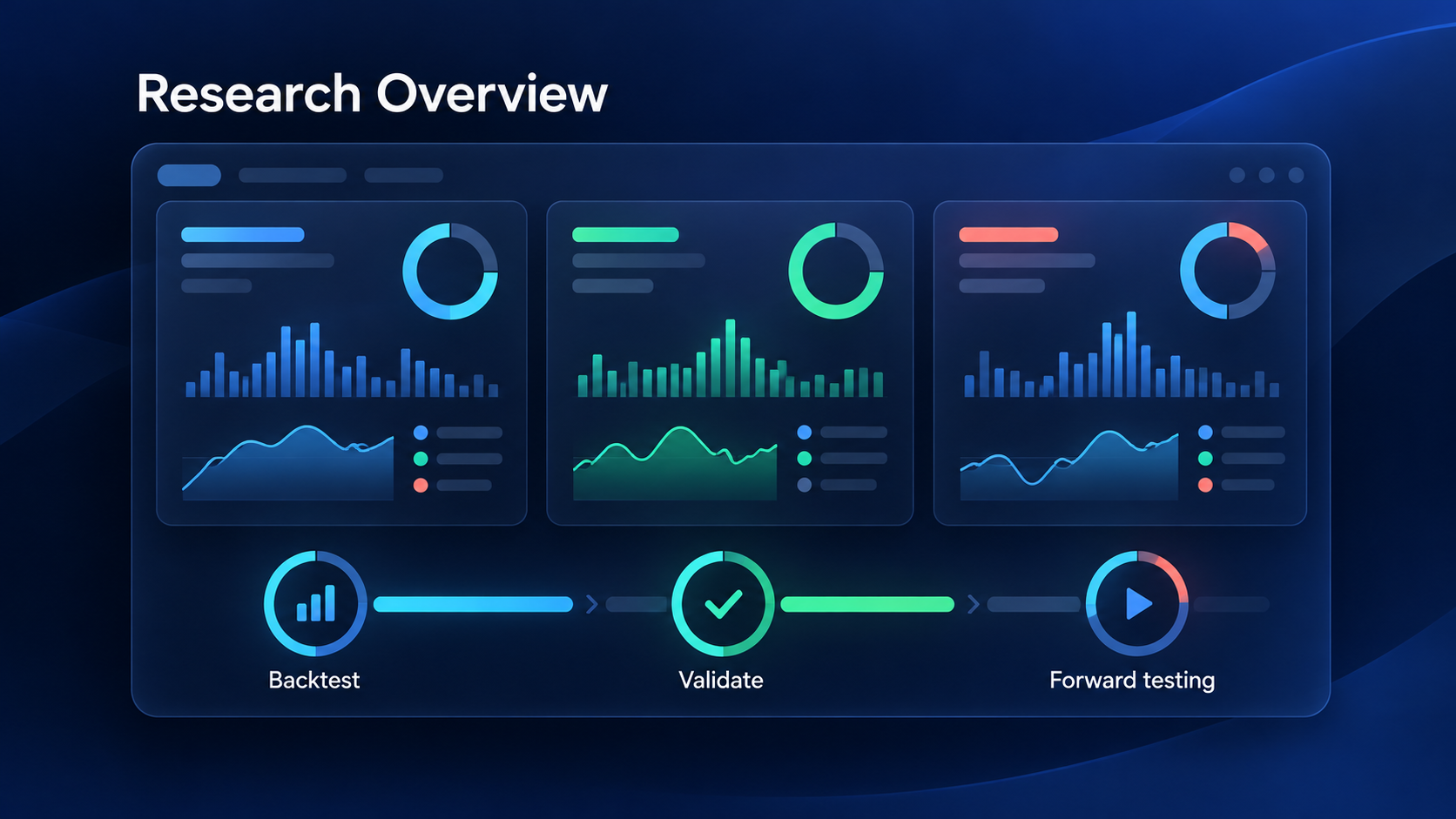
Suppose several symbols meet your trend and volume conditions. The next useful question is whether that pattern suggests a specific entry, exit, and holding-period hypothesis. Take that question into Algo Lab and evaluate it with realistic costs and the existing evidence checks.
Scanner helps explain where an idea came from. A shortlist alone does not establish an edge, place an order, or promote a strategy.
Follow the Scanner quick start, write your first Python screen, or connect the workflow to MCP and monitoring.
If Scanner is enabled in your workspace, open Scanner to build your first saved screen.